Leadership Desk Escalations
If you are unable to de-escalate a call, contact the Leadership Desk for assistance.
The Leadership Desk may provide guidance on how to proceed, take over the call through a live transfer, advise you to schedule a callback, or direct you to follow the current Priority Escalation Process.
When contacting the Leadership Desk, be prepared to explain what you have already reviewed, any actions taken, and information shared with the customer.
Always clearly communicate to the customer the actions taken and any next steps or expectations.
Escalation Examples:
De-escalation Tips:
- Review all applicable service jobs, claims, and account notes to fully understand the customer's experience.
- In many cases, reviewing the account and service history can help you provide information or a resolution that satisfies the customer's concern.
- Take ownership of the interaction and ensure the customer feels heard and understood.
If You Successfully De-escalate:
Summarize the actions taken and confirm the customer's needs have been addressed:
"[Customer Name], thank you for allowing me to assist you today. I was able to [summarize actions taken or information provided]. Is there anything else I can assist you with before we end our call?”
If Escalation Is Necessary
Before Contacting the Leadership Desk ensure you have:
- Reviewed all job notes and claim history.
- Verified coverage and contract terms.
- Discussed available resolutions with the customer.
- Attempted to de-escalate the call.
- Documented customer concerns and desired resolution.
Advise the customer you would like to gather additional information before involving a supervisor:
"I understand you'd like to speak with a supervisor. Before I connect you, I'd like to ask a few questions so I can provide them with the information needed to better assist you."
Avoid These Escalation Triggers:
The following phrases can increase customer frustration and should not be used:
- "There's nothing I can do."
- "The supervisor will tell you the same thing."
- "We've already explained this to you."
- "I don't make the decisions."
- "There is no supervisor available to speak with you."
- "My supervisor is busy."
- "There is only one supervisor available, and there are already calls in queue."
- "It's explained in your contract/Terms and Conditions."
Instead, Use Empathetic Alternatives:
- "Let me review all available options for you."
- "I understand your concern and want to ensure we've explored every available solution."
- "I'd be happy to provide additional information and connect you with a supervisor if needed."
- "Let me document your concerns so they can be fully reviewed."
Live Transfer
The agent will attempt a Live Transfer to the Leadership Desk.
- While on the active call, place the caller on hold.
- Click the Consult/Transfer icon.
- Search for your site specific Leadership Desk skill.
- Click the Call icon in the skill you are calling.
- Once Leadership Agent answers, advise of escalation reasons and provide customers information.
- Click Conference to bring customer on the line.
- Once everyone is joined, click Leave to leave the call.
Once transfer is complete, notate the job including details of the interaction and advise name of agent that took over call.
Call Back
If waiting in Live Transfer Queue for over 3 minutes, leave the queue and reach out to a supervisor for permission to create a Call Back Request. Once permission is given, return to the customer and offer to schedule the Call Back with a supervisor.

"Thank you for holding. I apologize but a supervisor is not currently available. I do have their schedule in front of me and would like to schedule a call back to follow up with you. Is there a specific day or time you would like to receive this call?"
Go to site specific booking link.
- UnifyCX: https://cinchhomeservices.zohobookings.com/#/4632608000008099144
- Telus: https://cinchhomeservices.zohobookings.com/#/4632608000007686126
- Always open the link in a new tab or refresh if it was already open.
- The Time Zone will default to Eastern - America/New_York - EDT (-4:00), refer to the USA: Time Zone Map.
You must select the Customer's Time Zone before selecting an appointment: Central - US/Central – CDT (-5:00)
Mountain – America/Denver – MDT (-6:00)
Arizona ONLY: US/Arizona – MST (-7:00)Pacific - US/Pacific – PDT (-7:00)
Hawaii ONLY: US/Hawaii - HST (-10:00)
Click the date box to select date the customer chooses. If not available, advise of dates that are.
- Click the time box to select the time the customer chooses.
- If not available, advise of times that are.
- Click Book Appointment.
- Schedule Appointment: The Booking Summary pop-up screen will display on the right side.
Fill in the customer's information, then click Schedule Appointment.
A confirmation pop-up will display: "Appointment confirmed with Cinch Home Service Call Back Requested".
The customer will receive a confirmation email with the appointment details. An appointment will also be booked in the Leadership Desk Outlook calendar.
Booking Confirmation Talking Point:
The customer will receive a confirmation email with the appointment details. An appointment will also be booked in the Leadership Desk Outlook calendar.
Booking Confirmation Talking Point:
"Great! I have successfully scheduled an appointment for you to speak with a Customer Advocacy Supervisor. The appointment is scheduled for <Date> between <Appointment Timeframe>. A confirmation email will be sent to the email address on file.
You will be contacted within 5 minutes of your appointment window. If you miss the initial call the supervisor will try calling again within 15 minutes. If you're still unable to answer, a voicemail will be left and an email will be sent so that you can reschedule the appointment."
Once the call has ended, create the Call Back Exception in ServiceBench.
Doing this will create a task in Zoho for the Leadership Agents to review before the appointment time.
Doing this will create a task in Zoho for the Leadership Agents to review before the appointment time.
- Click the Exceptions tab in ServiceBench.
- Under Exception Type, select Call Back.
- Under Exception Status, select Open.
- Enter the appropriate comment based on the reason using the approved Exception Comments.
Be sure to notate the job including details of the interaction and scheduled date/time of the call back.
Leadership Desk ONLY
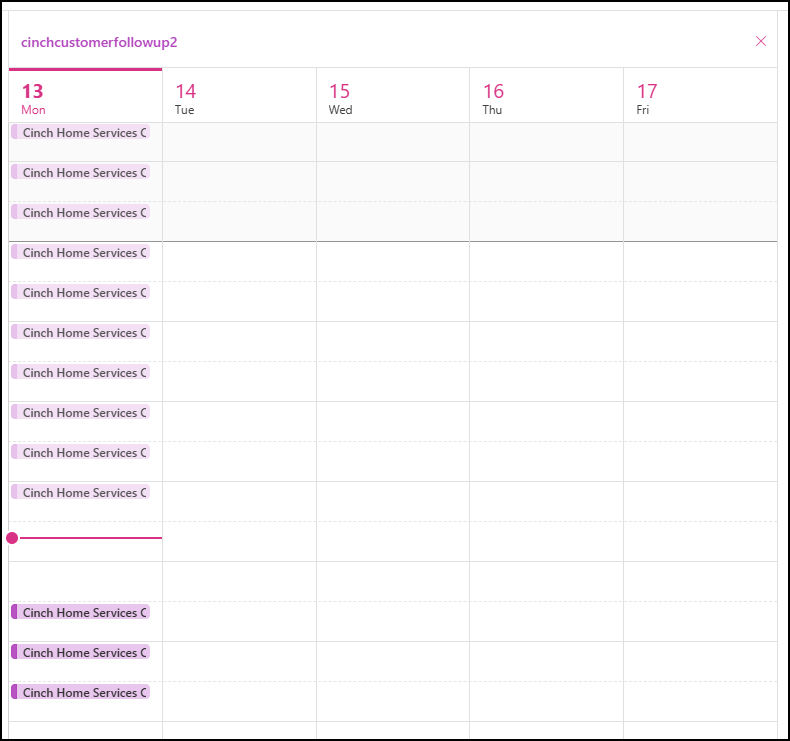
To make sure you see the Zoho Callback Booking appointments, you will add the Leadership Booking calendar to your Cinch Outlook calendar view.
You must use the booking calendar along with your Zoho Callback Task Queue to ensure each customer is contacted accordingly.
Inside your Cinch Outlook Calendar, Click Add Calendar:
Enter the Inbox for your site in the search bar and select it from the search results:
Click Save
It will add the new Calendar to your calendar view, you can also find it under People's calendars to add if it is not showing.
You will then be able to see Scheduled Call Backs. Click them to open the booking and view the customer details.
Leadership is only to provide the customer with an email address, separate from their own escalation handling, if absolutely necessary.
If a customer specifically asks for a Corporate Mailing Address of Fax Number you may provide the following info:
|
Mailing Address: |
Cinch Home Services PO Box 810277 Boca Raton, FL 33481-0277 |
|
Fax Number: |
(954) 845-2280 |
Related Articles
Tier 3 Escalations
Most Tier 3 tasks will originate within the Tier 2 team. Once a Tier 3 Task has been created and assigned to the T3 team, it moves into the T3 Team Task List, called a T3 Backlog. T3 tasks will be assigned randomly to T3 Associates using an automatic ...Call Back Guidelines: Frequency, Timing, Dropped, or Unresponsive
From time to time, agents may experience situations where the call with the customer disconnects unexpectedly or situations where, upon answering the call, there is no response from the customer. To continue with our effort to deliver the best ...Creating Zoho Call Back Tasks
Call Back Exceptions/Tasks are created when a customer is requesting to speak to someone higher up, however there is nobody available to take the call at that time. The agent will then create a Call Back Exception in ServiceBench or a Call Back Task ...Tier 2 Task Creation
Tier 2 (T2) Agents will create a Zoho task when a call is received to keep a record of the types of escalations and resolutions taking place. It is imperative to create each task AFTER each call to get the reason behind the escalation in order to ...Executive Escalations
An Executive Escalation is created when a customer requests a call back from a Cinch Executive. An email is sent to the Executive Escalations email inbox, a case is created in Zoho. Direct Assignment is utilized to assign the Executive Escalation to ...